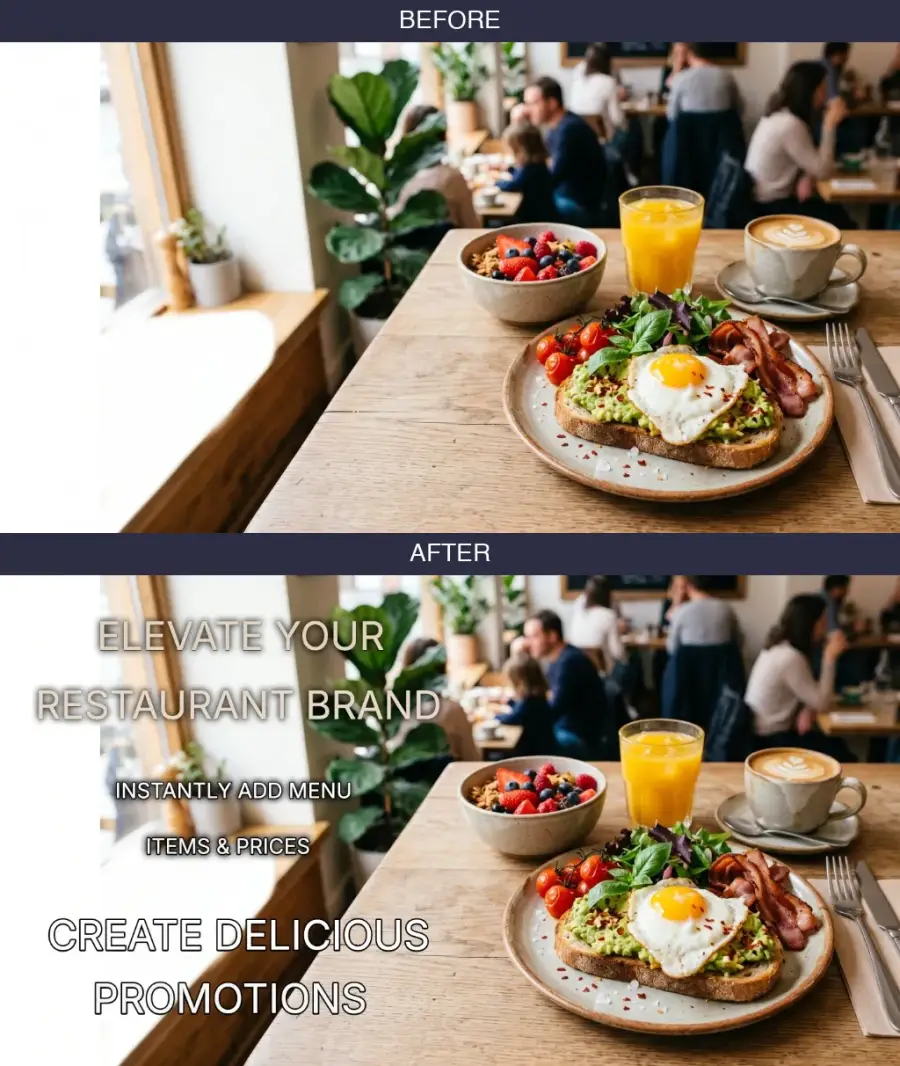
Edit text that is already trapped inside a photo, screenshot,
JPG, poster, product image, or social creative. PicText combines
photo text AI, image text editing, font finding, OCR, and manga
translation in one workspace.Edit photo text in screenshots, JPGs, posters, and social
creatives with PicText AI.
Replace what is already there without rebuilding the whole image.
Photo text AI
Photo text is text that cannot be selected. PicText makes it
editable.
Photo text, often written as Phototext, is the copy that has become
part of an image: a price on a restaurant menu, a product label, a
name on a sign, a caption baked into a social post, or wording
inside a screenshot. You can see the letters, but you cannot click,
copy, or edit them like normal text.
A basic caption tool can place a new text box over an image. That is
useful when you want to add a label from scratch, but it does not
solve the harder photo text editing problem: replacing words that
are already blended into the photo. PicText approaches the image as
a whole, so the replacement can respect the surrounding layout,
background, perspective, and visual style.
Use the photo text AI editor when you need to update a menu,
localize a product image, change a price, rewrite a headline,
translate a screenshot, or correct a detail in a photo. For
design-led images, the same workflow can help preserve the look of
the original type. For screenshots and JPGs, it provides a direct
alternative to opening a complex design file or rebuilding the whole
graphic by hand.
Replace text in contextChange the copy without covering the image with a generic
overlay.
Match the visual styleKeep the surrounding layout, type treatment, color, and
composition in view.
Cover more image formatsHandle photos, screenshots, flattened JPG and JPEG files,
posters, and manga pages.
A photo text editor should change the meaning of the image without
making the new copy look pasted on.
PICtext tool directory
Start with photo text or another image job.
Choose an image text editor, screenshot editor, JPG text editor, OCR
tool, font finder, manga translator, or photo text workflow. These
short entry points help you choose the right intent; every card
opens the PicText homepage.
Different image types need different checks. A screenshot has UI
structure, a JPG has compression, a product photo has lighting and
perspective, and a manga page has speech bubbles. These examples
show the kinds of photo text and image text jobs PicText is built to
handle.
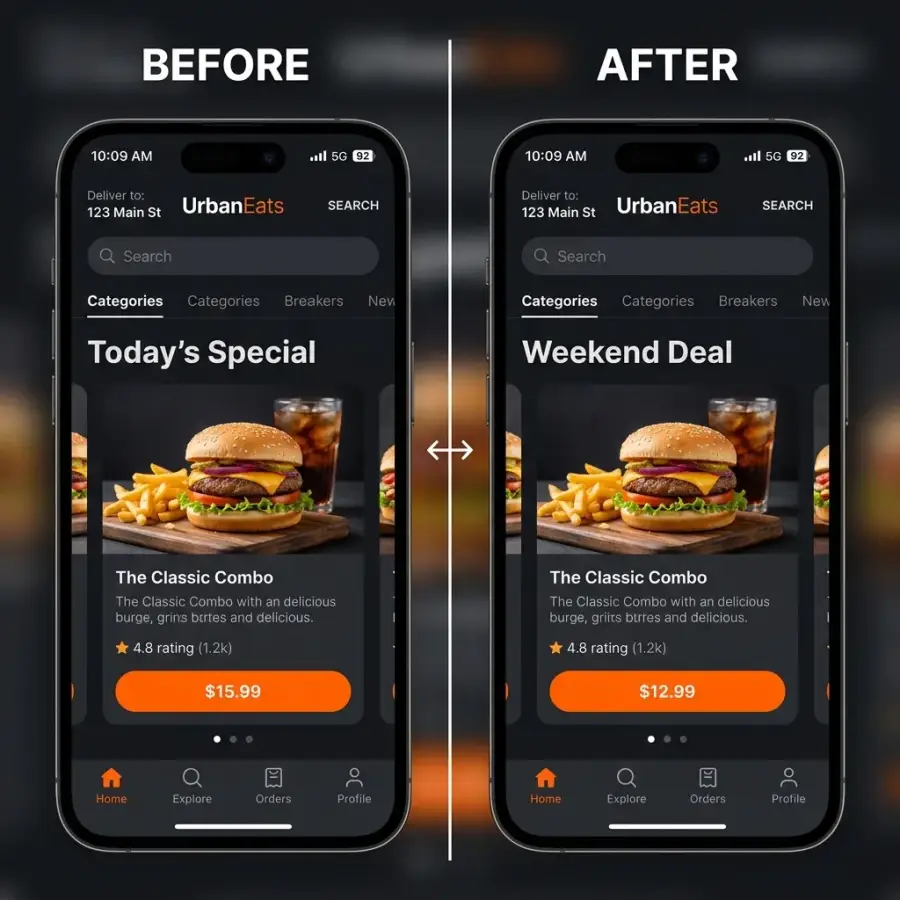
Screenshot editor
Edit UI copy without losing the screen layout.
Change a headline, offer, price, button label, or dialog in an
app screenshot. Keep navigation, cards, spacing, and surrounding
interface details recognizable so the image still looks like the
original product.
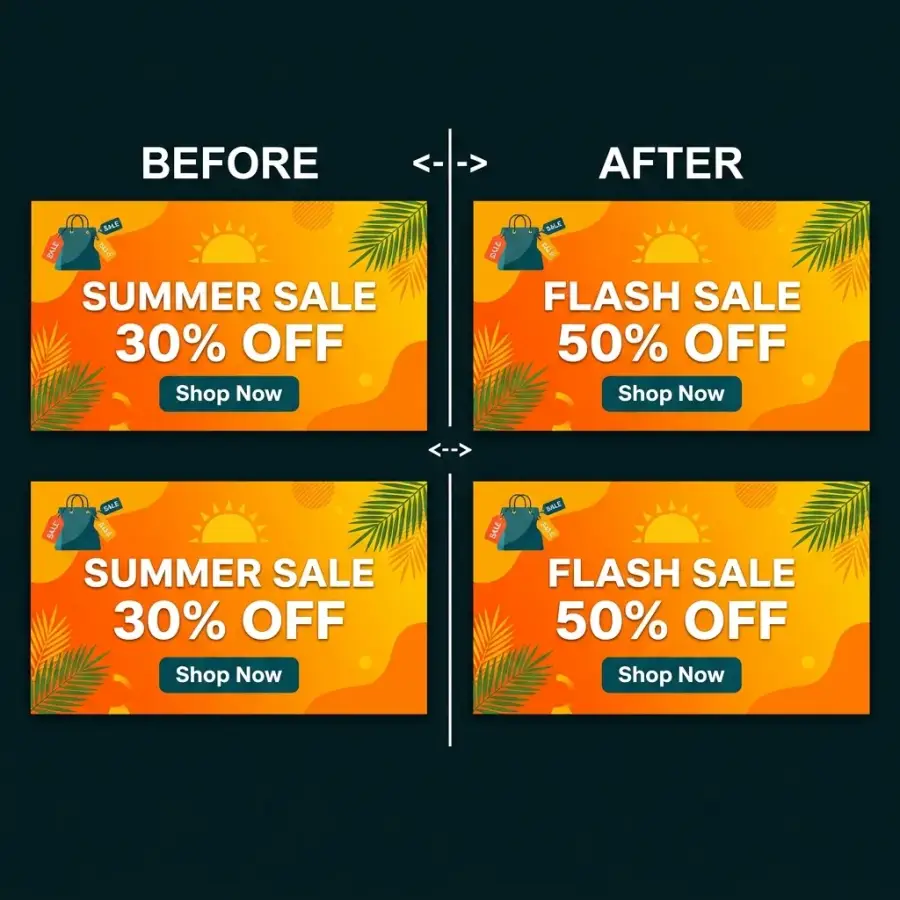
JPG / JPEG text editor
Work with text already flattened into pixels.
Compressed JPG and JPEG images rarely have editable layers. Use
PicText when a campaign banner, web graphic, product image, or
exported creative needs new wording while the rest of the design
should remain intact.
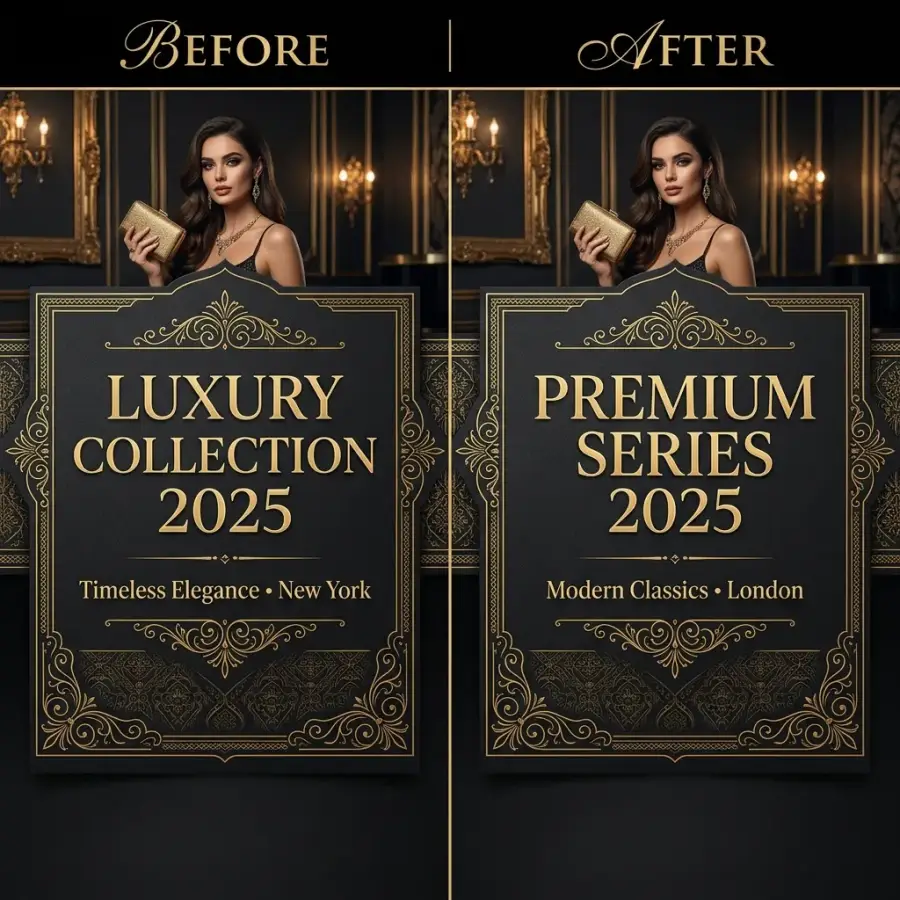
Same-font matching
Keep the typography close to the original.
The wording is only half of a believable image text edit. Font
weight, letter shape, spacing, color, and alignment also matter.
Use the same-font workflow when a redesign must stay close to
the original visual style.
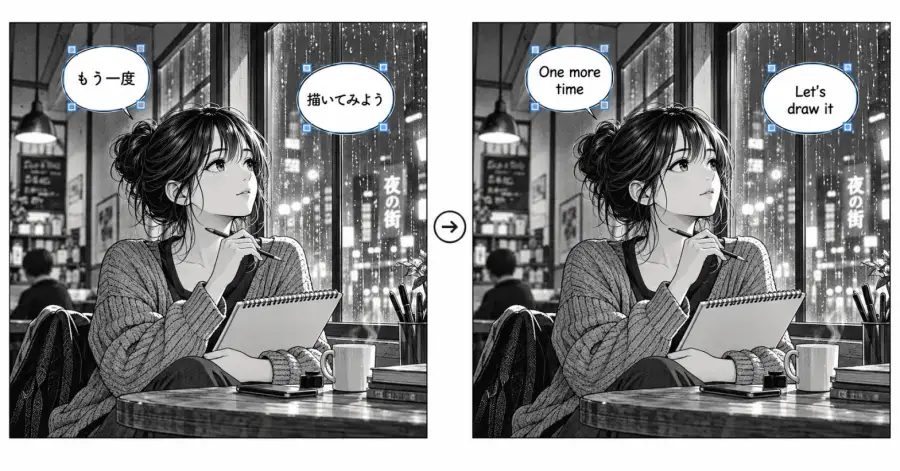
Manga image translator
Translate image text while keeping the panel readable.
Translate speech bubbles, captions, menus, signs, and other
localized text without replacing the entire illustration. This
workflow is useful for manga panels, comics, screenshots, and
image-based reading material.
One simple workflow
From an uneditable image to clean, updated text.
PicText focuses on replacing text that is already baked into an
image, then blending the change into the original composition.
Choose a screenshot, JPG, photo, poster, product image, or manga
page.
02
Describe the text change
Select or identify the copy, then provide the replacement and
any style requirements.
03
Generate the edited image
Review the revised text in context and keep the surrounding
layout and visual style.
Built for high-intent image text jobs
Screenshots, compressed photos, creative assets, and more.
01
Screenshot editing
Change interface copy while keeping navigation, spacing, and
component structure recognizable.
02
JPG / JPEG text edits
Work with flattened raster images where text cannot be selected or
edited directly.
03
Photo text replacement
Update prices, labels, names, product copy, and other words
photographed in the real world.
04
Translation and localization
Adapt screenshots, menus, signs, and manga panels for different
languages and markets.
Questions
Before you open PicText.
What is photo text AI?
Photo text AI identifies words that are already part of an image
and helps edit or translate them in context. It is different from
a caption tool that only places a new text box on top of a photo.
Can I edit photo text without Photoshop?
Yes. PicText is a browser-based photo text editor for photos,
screenshots, JPG and JPEG files, posters, and social creatives.
You do not need the original design file or editable text layers
to start the workflow.
What is the difference between an image text editor and image to
text?
An image text editor changes the words that appear inside a
visual. Image to text, or OCR, extracts words into editable text.
PicText covers both workflows.
Can PicText edit text in a screenshot?
Yes. The screenshot text editor is designed for app screenshots,
dashboards, web pages, dialogs, and other screen captures.
Can I edit text in JPG and JPEG images?
Yes. PicText works with flattened JPG and JPEG images where the
original text is already part of the pixels.
How can I find a font from an image?
The Font Finder from Image workflow helps identify the typeface
used in a screenshot, photo, poster, or brand reference.
Where do the tool cards on this page go?
Every tool card opens the PicText homepage, where the full set of
current image text tools is available.
Photo text AI, screenshots, JPGs, and beyond
Open one workspace for text inside images.
Go from image text editing to OCR, font matching, and translation
without collecting a separate tool for every file type.